
How to Make a Stream Overlay
February 3, 2026
Updated February 3, 2026
Overlay is a graphical layer that overlays on stream image and complements it with visual information. It helps design broadcast, highlight channel brand and simplify content perception for viewer. Well-made overlay doesn't distract from what's happening, but enhances presentation, especially when working in OBS or Streamlabs. Element examples: webcam frame, alerts, chat, timer or goal.

Main Elements
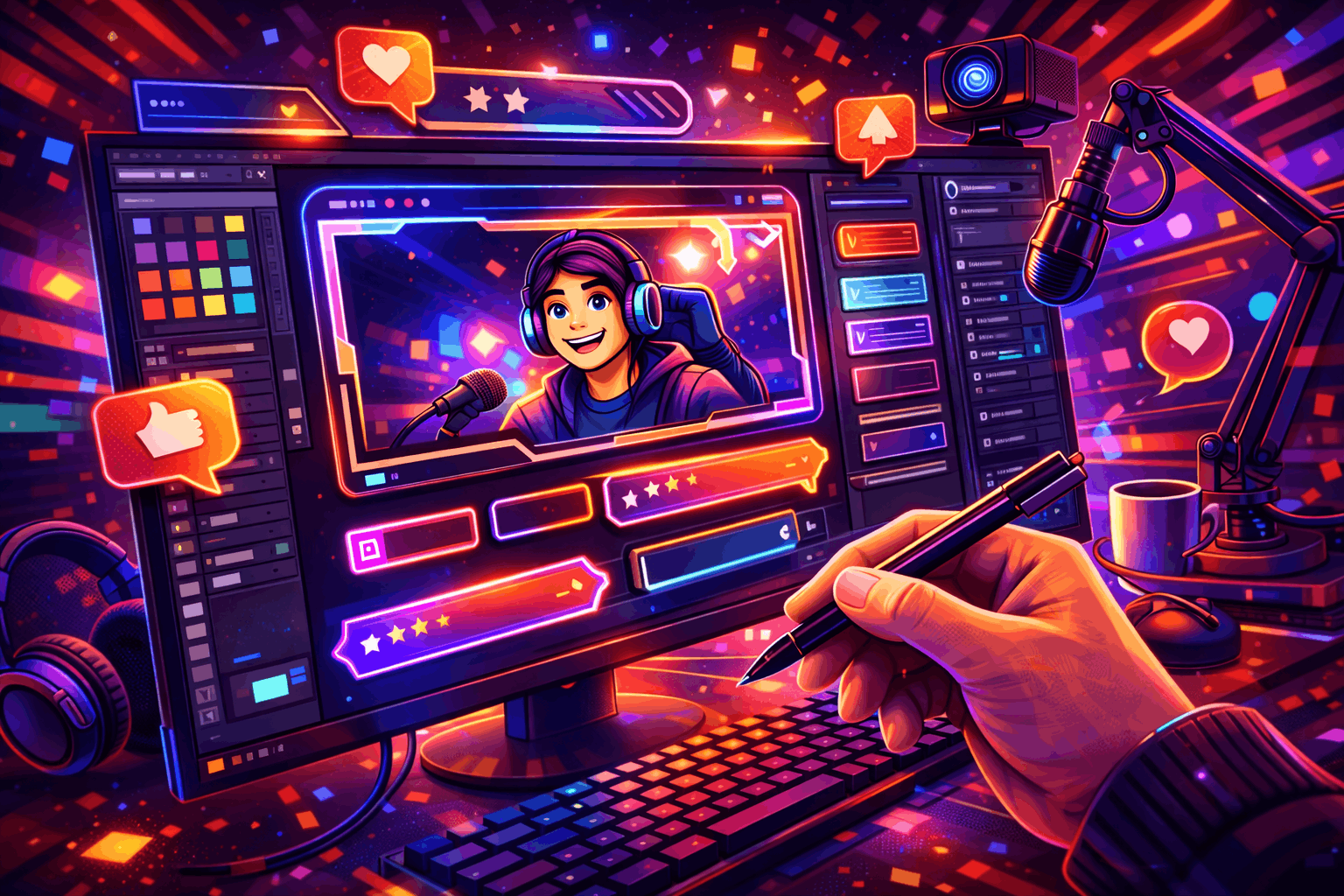
Before making stream overlay, it's important to determine format and scenes for which it's needed. Universal set doesn't exist: same overlay can work differently in gaming format and conversational broadcasts.
Basic elements from which overlay is most often created:
- camera frame
- subscription and donation alerts
- chat
- nickname or logo
- information panels
- timers and goals
Examples:
Gameplay — minimalist overlay is used that doesn't cover game HUD and important interface elements. Camera and information blocks are placed at screen edges so viewer always sees gameplay without visual interference.
Just Chatting — focus shifts to communication, so camera is made larger and chat takes noticeable place on screen. Helps viewers feel live contact and actively participate in dialogue.
Starting / BRB — technical scenes where there's no gameplay. Here start or return timer, brief CTA and minimal animation are appropriate so viewer understands status and doesn't leave.
Defining Style and Color Scheme
For overlay to look cohesive, it's important to determine visual style in advance. Creation foundation is palette of 3–4 colors, 1–2 fonts and repeating element shapes. All parts should look like unified set, not random details.
Priority is always given to readability: overlay should be normally perceived both in 720p and when viewing from phone. Too thin lines and light text on light background work poorly on Twitch.
Examples:
- Shooters — contrast, minimalism.
- RPG — soft shapes, icons.
- Chat stream — large elements.
Another important point is stability of chosen style. If you decided to use specific color scheme and fonts, they should be kept on all scenes. Frequent design changes create feeling of chaos and reduce channel recognition. It's much more effective when viewer immediately understands which channel they're on by one element, without even looking at name.
Creation Tools
There are several levels of tools for creating overlay. For quick start, Canva and Figma are suitable, where it's easy to make simple layouts. For detailed graphics, Photoshop or GIMP are more often used. Scene assembly and final check are performed in OBS or Streamlabs.
Main formats and sizes:
- PNG — static overlay with transparency
- WebM — animated version
- 1920×1080 — main size
- 1280×720 — lightweight version
Example: First overlay layout is laid out in Figma: canvas sizes are set for 1920×1080, frames, plates and text blocks are placed. After that elements are exported in PNG format with transparent background. Ready files are added to OBS as separate sources and placed over scene, checking scale and overlaps in real time.
How to Make Overlay Unique
Unique overlay is not complexity, but thoughtful personalization. Connection works: branded elements + unified style + neat animation. It's important not just to create beautifully, but recognizably and conveniently.
Techniques that help create unique overlay:
- channel logo or nickname
- custom icons
- unified alert style
- micro-animations
- separate Starting/BRB/Ending scenes
Examples of successful solutions:
Stinger transition lasting 0.5–1.5 seconds, without sharp colors and aggressive animation — this way scene changes look smooth and don't distract from broadcast.
Goal plate 'Road to ...' is placed in free screen zone where there's no important game interface, so as not to cover HUD and not interfere with viewing.
Main rule — overlay emphasizes content, not competes with it.
Good uniqueness always builds around streamer's personality and content format. Even simple overlay can look memorable if it supports communication style, stream pace and broadcast mood. Viewers quickly get used to visual details, and over time they begin to be associated specifically with your channel, enhancing presence and trust effect.
Overlay Optimization
Optimization directly affects stream stability and viewer comfort. Even beautiful design can interfere if it covers important elements or loads system.
Optimization checklist:
- don't cover HUD
- use transparent substrates
- large fonts
- version for 720p
- minimum heavy animations
- limited number of sources
Anti-lag plan:
reduce animations, combine elements, remove extra filters in OBS. If alert and chat overlap — reconsider zones and display order.
Testing and Feedback
Before full stream, overlay must be tested. It's better to identify problems on recording than in live broadcast. Testing is part of creation process, not final step.
What to check:
- text readability
- element overlaps
- alert volume
- appearance order
- scene correctness
Feedback can be collected through moderators, regular viewers or mini-poll. It's useful to change one element at a time, not entire overlay at once. Watch test on mobile internet — this is closer to real Twitch viewer.
It's also useful to test overlay in different lighting conditions and with different content. What looks good in calm scene may interfere in dynamic gameplay. Several test recordings with different games or formats help understand in advance where design needs refinement and which elements are better to hide or simplify.
Tips for Maintaining Uniqueness
For overlay not to become outdated, it's not necessary to completely redo it. Regular updates and small changes are enough.
Recommendations:
- light redesign once every 6–12 months
- seasonal packages for events
- change 1–2 elements at a time
Halloween, New Year or channel anniversary is great occasion to update Starting and BRB scenes while keeping basic style.
Conclusion
Overlay is combination of functionality, visual style and viewer convenience. Good overlay helps stream look professional and increases engagement if it doesn't interfere with content.
Before stream check:
- scenes ready
- phone readability
- HUD not covered
- alerts and sound
- 720p version
- test recording
After stream packaging it's important to think about regularity and chat activity: design works only together with live content.

