
Collaborative Streaming on Twitch: How to Stream Together Using Guest Star
November 3, 2025
Updated November 3, 2025
The Guest Star feature is the ability to conduct collaborative streams on Twitch, inviting other content creators directly into the broadcast without complex settings. Thanks to this feature, a streamer can broadcast live together with a friend, guest, subscriber, or another popular channel, creating a new format of communication and collaboration.

Who Is This Useful For
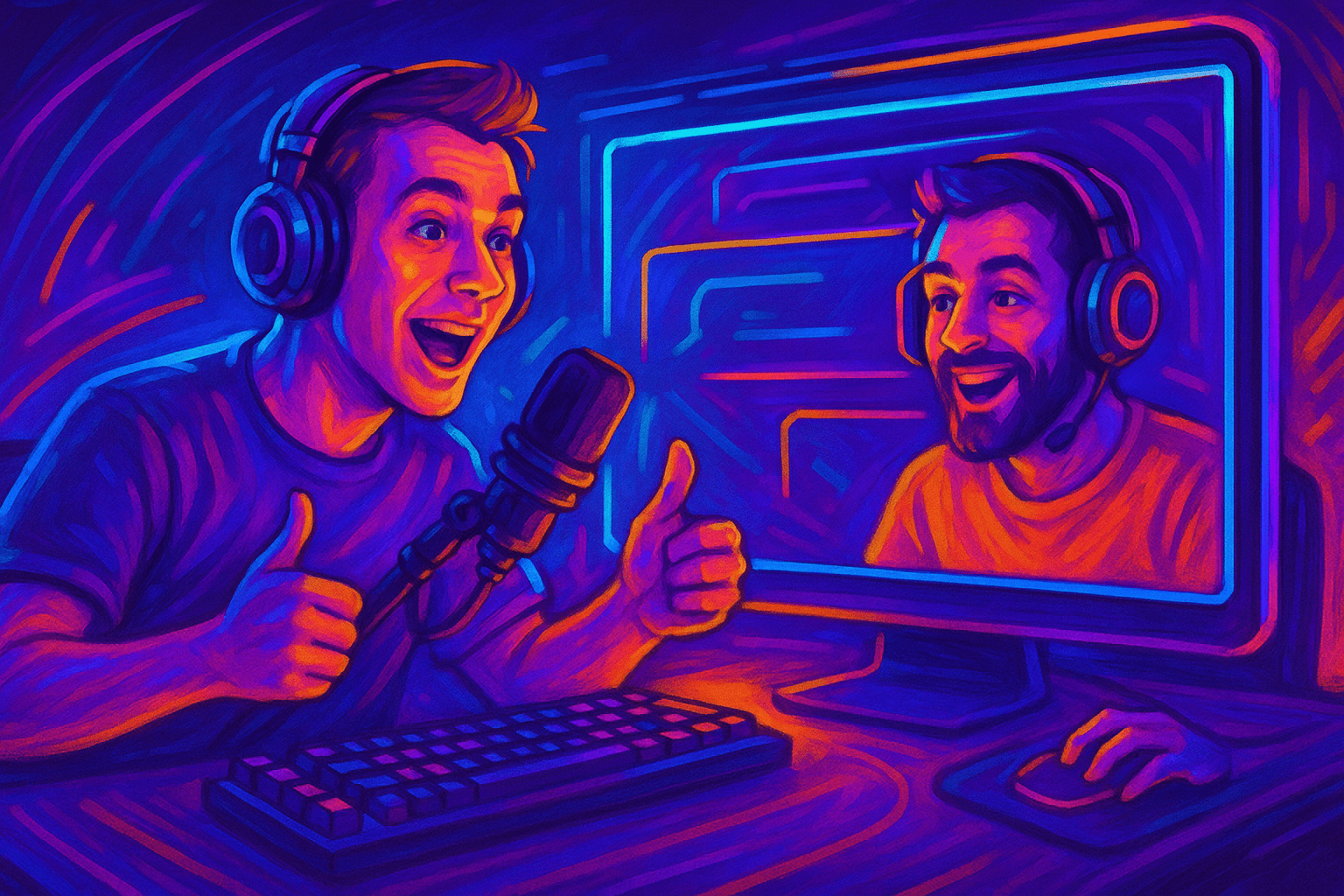
Who is this useful for? First and foremost, for streamers who want to diversify their content and increase their reach, as well as for viewers who get more lively and interactive communication. Guest Star helps organize a group stream without additional equipment or extra programs, using only the Twitch panel.
This feature solves the problem of technical complexity in collaborative broadcasts. If previously you had to look for third-party solutions, now you can organize a joint stream on Twitch with a friend in just two clicks. Guest Star simplifies communication, improves broadcast quality, and helps make every interaction with the audience interesting and professional.
Key Features and Main Benefits
Collaborative streaming is not just a way to invite a friend to your broadcast. It's a tool that helps create next-level content. Twitch Guest Star combines multiple streams into one, makes the broadcast visually appealing, and allows for collaborative content creation.
- Easy guest connection — the feature helps understand how to make a joint stream on Twitch with a friend and doesn't require third-party programs.
- Group streaming — ability to gather several guests in one broadcast.
- Audience expansion — viewers of all participants can watch one broadcast simultaneously.
- Complete control over the frame — the streamer decides who to show and in what format.
- Convenience for viewers — more interaction and fewer switches between channels.
- Minimal latency and high quality audio and video.
- Ability to invite viewers or partners for interviews, gaming battles, or joint discussions.
- Versatility — Guest Star is suitable for gaming streams, podcasts, Q&A, and even educational formats.
- Integration with Twitch control panel and easy role management for participants.
- Increased viewer engagement and channel growth through collaborative streams.
Every joint stream on Twitch becomes an opportunity for growth and collaboration. The Guest Star feature opens the door to new possibilities where streamers can not only broadcast but also create a dynamic community around their content.
Why Collaborative Streams Are Important for Channel Growth
Collaborative streams allow you to reach multiple audiences at once. If you team up with another streamer, their viewers see your channel and vice versa. Thus, even a small joint stream on Twitch can become a powerful promotion tool. Viewers love watching live interaction, as two people on screen create a more dynamic atmosphere than a solo host.
Additionally, collaborative streams help combat burnout. Streaming is emotionally demanding activity, and the opportunity to communicate with a colleague or friend during a live broadcast makes the process easier and more interesting. Gaming duos are especially popular, where you can joke, discuss strategy, or simply share emotions.
How It Works (Step-by-Step Guide)
Step 1. Channel Preparation
Before making a joint stream on Twitch, make sure your channel is verified and equipment is ready. Check sound, video, and internet connection. Create a clear description and banner to announce the collaborative broadcast.
Step 2. Sending an Invitation to a Guest
Go to the Twitch control panel and select the Guest Star tool. Enter the nickname of the guest or friend you want to invite. The system will send an invitation, and the guest will be able to join via browser or application. Now the collaborative stream on Twitch is ready to be set up.
Step 3. Setting Up the View and Scene
Open OBS or another streaming program and add the Guest Star source. Configure window placement, split the screen between participants, and check the sound. This is how you create a professional look for a collaborative broadcast on Twitch.
Step 4. Starting the Collaborative Broadcast
When everything is ready, click "Show on screen." The guest will appear in your broadcast, and you can begin. Invited participants can share their content, communicate with chat, and interact with each other. This is how simply the question "how to make a collaborative broadcast on Twitch" is solved.
Step 5. Management and Completion
During the broadcast, you can add new guests, turn sound on or off, and change window placement. After completion, click "Remove guest" and stop the session. The recording will remain in the channel archive for use in clips and replays.
Additional Settings and Helpful Tips
- Prepare a script before the broadcast. A clear plan will help avoid pauses and duplicate statements.
- Before launching a joint stream on Twitch, test the sound and lighting.
- Coordinate participant roles: host, guest, second host.
- Think about which games or topics are suitable for collaborative streams and group meetings.
- Monitor the chat. New audiences often come during collaborations, so moderate moderation is important.
- Use constant announcements — this will help gather the audience of both channels.
- If streaming together, set a consistent volume level and sound tonality.
- Try new formats: gaming duo, joint interview, news discussion, cross-stream.
- Save recordings and use them for promo. Collaborative streams often provide the best content for highlights.
How to Turn Collaborative Streaming Into a Regular Format
If the broadcast was successful, try turning it into a series. For example, do weekly podcasts or gaming meetups. Regularity forms a habit among viewers and creates anticipation for new episodes. To maintain attention, vary topics, invite new guests, and alternate formats — from serious discussions to entertaining games.
A joint stream on Twitch can also be used for charity events, giveaways, and challenges. This adds emotional response and strengthens viewer trust. Participation of multiple streamers amplifies the effect and makes the event more significant.
How to Use Analytics After the Stream
After completing the broadcast, it's important not just to turn off OBS but also to analyze the results. In the "Channel Analytics" section on Twitch, you can see how many viewers came, where they came from, and how long they stayed on the broadcast. If you made a joint stream on Twitch with a friend, compare the metrics with regular broadcasts: how engagement, chat activity, and subscription numbers changed.
This data will help understand which formats work better. Perhaps the audience reacts positively to conversational streams, while gaming duos gather more views. Using statistics, you can build a channel development strategy and make collaborative broadcasts not just an interesting experience but part of systematic growth.
Frequently Asked Questions (FAQ)
Go to the Guest Star panel, send an invitation to your friend, and add them to the broadcast. Everything is done in a few clicks.
Yes, Twitch supports up to five participants, including the main host.
No, the feature is available to all content creators, however there may be restrictions in some regions.
The guest can connect through a browser using a built-in camera and microphone. The main thing is stable internet.
Restart the Guest Star session and check device access permissions.
Yes, but control functions may be limited. It's recommended to use a PC or laptop for full setup.
Yes, all broadcasts are saved in the "Video Studio" panel. You can create clips and share them on social media.
A raid redirects viewers to another channel, while a collaborative stream brings you together in one broadcast.
Yes, the feature is ideal for these formats, especially if you need to conduct a dialogue with two or three people.
Add a Browser Source with a link to the guest and configure the window placement in the scene.
Conclusion
Collaborative streams on Twitch are a new form of interaction that allows content creators to expand their audience and improve broadcast quality. Knowing how to make a collaborative broadcast on Twitch or how to stream together, you can easily organize interesting and lively content with guests. The Guest Star feature makes the process simple, reliable, and accessible to every streamer. Try this format and discover new opportunities for growth and creativity.

