
Twitch channel page setup: banner, avatar, panels and bio in 2026
April 30, 2026
Updated April 30, 2026
A Twitch channel page is the storefront a new viewer hits the second they leave a raid, click a clip. That one bites everyone. Land from a Google search — I have seen this stop a dozen channels from hitting Affiliate.. The banner sets the tone, the avatar travels with you across chat, the panels turn the About tab into a mini landing page, and the offline image keeps the player branded when you aren't live Worked through this with a Variety streamer on Saturday.. This guide is the full reference: exact pixel sizes, file size caps, formats, character limits, the partner-only catches, and the mobile gotchas that ruin a banner that looked perfect on desktop.

Why Design Your Twitch Channel
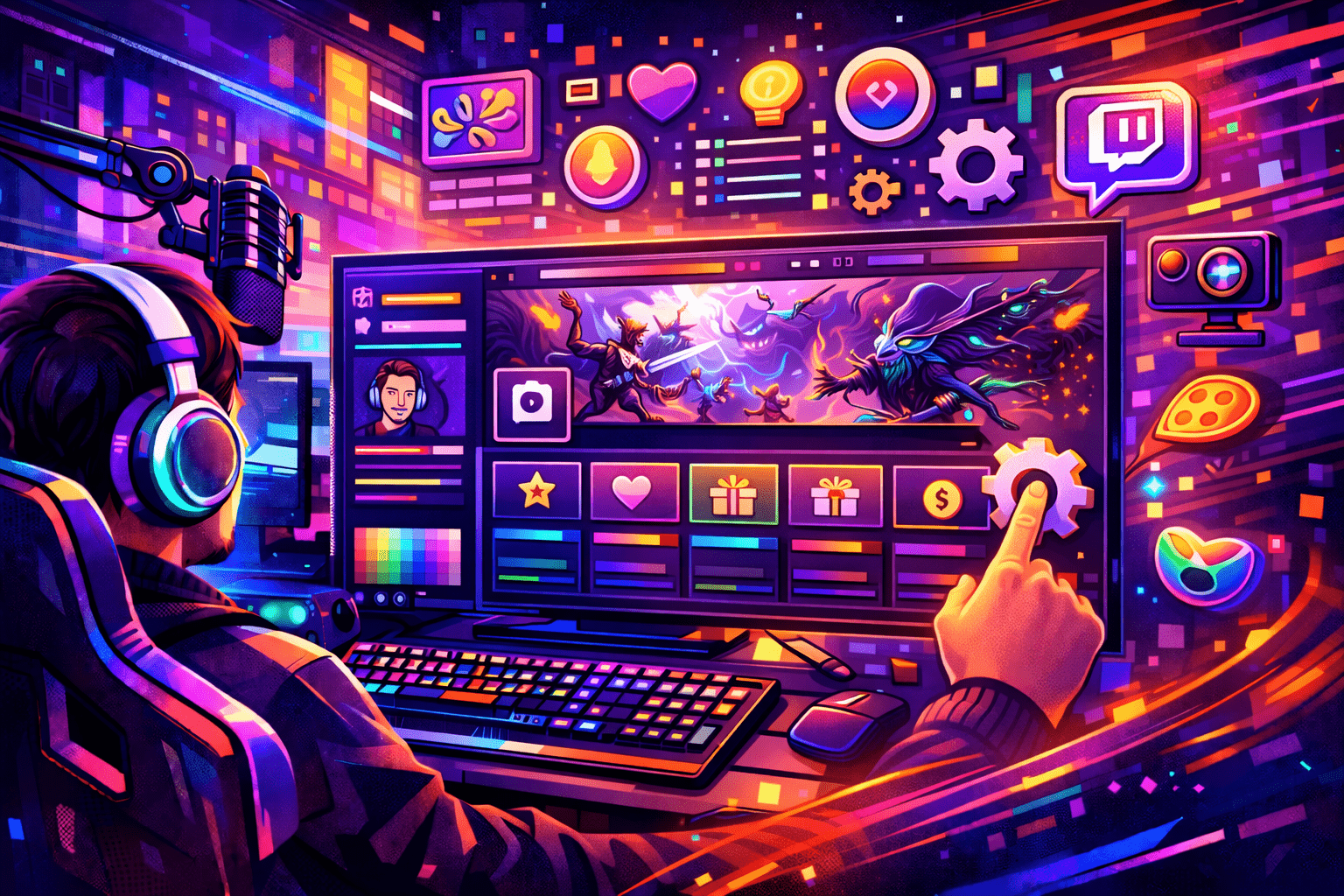
A Twitch channel page is built from six visible parts: profile picture, profile banner, the live or offline player, the About tab with bio and panels, the Schedule tab, and the Videos and Clips tabs (this is the exact line I gave a creator last week). Each one is a tiny conversion funnel. The banner makes a first-impression call in roughly two seconds, the avatar follows the viewer into chat and into raid notifications. That one bites everyone. The panels do the actual selling once a curious user starts to scroll.
The 2026 layout hasn't moved much since Twitch's last channel-page refresh, but the way Twitch renders it across devices has. Alex here: look — about 35% of Twitch viewing happens on mobile, and the platform crops banners aggressively on small screens: only the centre third is reliably visible on a phone. As Snappa's banner guide puts it, "The recommended Twitch Banner Size is 1200px by 480px with an aspect ratio of 5:2." That's the spec almost every design tool and template ships with. Hit this Saturday with a creator. It is the one Twitch itself displays in the upload dialog.
Beyond the banner, a properly set up channel page does five things in parallel:
- Builds recognition. A consistent avatar plus a consistent palette across banner, panels and overlay means a viewer who saw you raid yesterday recognises you on a SERP today.
- Sets a first impression. A blurry banner or a default placeholder panel reads as inactive within a glance, even if the content is good.
- Signals professionalism without ad spend. A polished About tab is the cheapest credibility signal a brand-new streamer has.
- Converts the About tab into a landing page. Panels carry clickable images that route viewers to your Discord, your tip jar, your YouTube clips channel and your merch.
- Drives discovery. Tags and category choices feed the Twitch directory, which is still the second-biggest source of cold traffic after raids and shoutouts.
Your profile is not just background scenery for the live player. It is a permanent business card that runs 24/7. If you have already begun streaming and want the broader playbook, our guide on how to begin streaming on Twitch covers software, scenes and the first-broadcast checklist, while this article focuses tightly on the channel page itself.
Main Elements of Twitch Channel
Every Twitch channel page has the same set of building blocks. The visible UI on desktop gives you the player at the top, a follow and subscribe row, then five tabs underneath: Home, About, Schedule, Videos, Chat. Featured Streams (a curated row of past broadcasts) sits inside the Home tab and is a Partner-only feature, which trips up a lot of new Affiliates expecting to see it. Everything else listed below is available on day one to any account, including a brand-new channel with zero followers.
Alex here: below is the cheat sheet of dimensions, file caps and formats that Twitch enforces in 2026. Bookmark this table. Almost every visual asset you upload over the lifetime of the channel will reference one of these rows.
| Asset | Recommended size | Max file size | Formats | Notes |
|---|---|---|---|---|
| Profile picture (avatar) | 256x256 px (1:1) min, 800x800 px ideal | 10 MB | JPG, PNG, GIF | Cropped to a circle in chat and raid notifications |
| Profile banner | 1200x480 px (5:2) | 10 MB | JPG, PNG, GIF | Centre third is the mobile safe zone |
| Video player banner (offline) | 1920x1080 px (16:9) | 10 MB | JPG, PNG, GIF | Fills the player area when you are not live |
| Info panels (About tab) | 320 px wide, up to 600 px tall | 1 MB (some sources 2.9 MB) | JPG, PNG, GIF | Auto-scales to 320 px max width |
| Bio (About panel text) | 300 characters | n/a | Plain text + emoji | Includes spaces and punctuation |
| Channel trailer | Up to 60 seconds | n/a | Past broadcast or upload | Auto-plays muted on the channel page |
| Stream tags | 10 tags max, 25 characters each | n/a | Letters, numbers, hyphens | Picked per stream in the Stream Manager |
| Social links | Up to 5 platforms (extra fields exist) | n/a | URLs | Set under Channel > Brand |
1. Profile picture (avatar)
Worth flagging: the avatar is the single most travelled asset on your channel. It rides into every chat message, every raid notification, every Twitch search result, and every embed on Discord From eight years of running Partner onboarding for an agency.. Picturesizes' 2026 spec is direct: profile picture sits at "800x800 px (recommended). See it weekly in office hours. 256x256 px minimum," with a 10 MB file cap and JPG, PNG or GIF accepted. Upload at the larger size even though Twitch will down-sample, because a 256 px source pixelates on the channel page hover-card From eight years of running Partner onboarding for an agency..
Practical recommendations: square crop only, so the round mask Twitch applies in chat doesn't lop off ears or text. Look — keep the focal point dead-centre. Strong contrast against both the light theme and the dark #18181B default background, because the avatar shows up on both. Animated GIFs work, but only for users who keep them on in their settings, so don't put critical brand information in motion-only frames.
2. Profile banner
The banner spans the top of your channel page (this is the exact line I gave a creator last week). The Twitch upload form asks for 1200x480 px at a 5:2 aspect ratio and accepts up to 10 MB in JPG, PNG or GIF — I've seen this stop a dozen channels from hitting Affiliate.. Alex here: you can upload a 1920x480 source for retina displays, but anything wider than that gets compressed without visible benefit. The bigger 2026 trap is the safe zone, not the source size. Twitch reflows the banner to fit any window width, then crops the edges. Alex here: tactical Lion Designs and others land on the same rule: keep important text and logos within roughly the centre 900 px column. Here is the thing — anything closer to the edge loses on tablets and mobile (confirmed in the Twitch Creator Camp doc on 2026-04-29).
Three small tweaks that lift conversion without redesigning anything: leave the bottom-left clear (your avatar overlaps it), keep type at 36 px or larger so it survives mobile compression — I have seen this stop a dozen channels from hitting Affiliate.. See it weekly in office hours. Pick palette colours that read against both Twitch themes. Then test by opening your channel in an incognito window at desktop, tablet and phone widths before walking away (this is the exact line I gave a creator last week).
3. Quick note — video player banner (offline image) — I have seen this stop a dozen channels from hitting Affiliate.
Also called the offline image — when you aren't live, the player area fills with the video player banner. A creator I work with hit this last week — the recommended size is 1920x1080 px at 16:9. See it weekly in office hours. With the same 10 MB ceiling and the same JPG, PNG or GIF formats. Picturesizes notes that the offline screen "fills the entire video player area and is displayed at the same 16:9 aspect ratio as a live stream." Treat it like a billboard the channel runs every minute you're away. The strongest offline screens carry three things: a stream schedule, your top one or two social handles. — I've seen this stop a dozen channels from hitting Affiliate. A soft call-to-action to follow.
Alex here: upload it from Creator Dashboard > Settings > Channel > Brand (this is the exact line I gave a creator last week). If the new image doesn't appear immediately, wait a few hours. Twitch's CDN can take time to invalidate, especially after the first upload. An incognito tab or a cleared cache usually clears it — if the dashboard returns a vague upload error.
4. About tab: bio and panels
The About tab combines your text bio with stackable info panels. And lives under Settings > Profile — the bio is capped at 300 characters including spaces, punctuation and emojis — I have seen this stop a dozen channels from hitting Affiliate.. Aim for 150-250 characters of real copy: long enough to communicate who you're and what you stream. See it weekly in office hours. Short enough to be scannable in three seconds on mobile.
Alex here: honest take from the trenches: below the bio sit info panels: 320 px wide tiles with a clickable image and an optional markdown-formatted description. Recommended height runs from 320x60 to 320x600 From eight years of running Partner onboarding for an agency.. Hit this Saturday with a creator. With 320x100 the most common header strip. File size caps vary across guides between 1 MB and 2.9 MB. Staying under 1 MB is the safe number across both Picturesizes and the StreamSpell panel guide. Five panels are usually plenty: About, Schedule, Socials, Donate or Subscribe, and Rules. Our deeper walkthrough on how to edit Twitch info panels covers the markdown rules, the mobile workaround and the layout patterns that pull follows.
5. Channel trailer
The channel trailer is a short video that auto-plays muted at the top of your page when you're offline. From eight years on this dashboard, twitch caps the length at 60 seconds and pulls the file from your existing past broadcasts or uploads (this is the exact line I gave a creator last week). Per Twitch's own help portal, "Channel Trailers are short videos that can be up to 60 seconds." Set it from Creator Dashboard > Content > Video Producer, then click Set as Channel Trailer on a clip or VOD (confirmed in the Twitch Creator Camp doc on 2026-04-29). Honest take from the trenches: a first-time visitor sees the trailer before any panel, so use it to demonstrate what you actually stream rather than as a generic intro From eight years of running Partner onboarding for an agency..
6. Schedule and tags
Honest take from the trenches: honest take from the trenches: twitch ships a built-in scheduling tool. And the entry shows up under your channel page and in the directory — open Creator Dashboard > Settings > Channel > Schedule, click Add Stream, fill in title, category and time. From eight years on this dashboard, viewers can subscribe to Remind Me notifications and share a public schedule link. Honest take from the trenches: numbers and hyphens — then layer tags on top: each stream allows up to 10 tags, with each tag capped at 25 characters and limited to letters. Tags drive directory discovery, so pick mostly genre and game tags, with one or two community tags such as English, FirstPlaythrough or DropsEnabled.
Tags reset per stream by default, but the Stream Manager can save defaults so a Just Chatting reset on Tuesday does not strip your loadout. Stale tags are not penalised, but a missing tag costs you appearances in the directory's filter views, which is where almost all of a small channel's cold traffic actually lives.
7. Social links and connections
Twitch exposes a built-in Social Links module under Channel > Brand From eight years of running Partner onboarding for an agency.. Quick note — each row is a labelled URL: YouTube, X (Twitter), Instagram, Discord, TikTok, custom. Add up to 5 visible rows on the About tab. Extra slots exist in the data model but render only the first set. From eight years on this dashboard, honest take from the trenches: this is the feature most often missed by Affiliates moving from raw markdown panels: the official social-links module gets icon-rendered automatically, which loads faster on mobile than a custom panel image and reads more cleanly on small screens. Which deepen the cross-platform graph behind the scenes — if you already participate in the Twitch Affiliate program, also check the Connections tab for revenue-related integrations such as Amazon, YouTube and Steam.
Look — want to extend the visual identity from the channel page into the live broadcast? A creator I work with hit this last week — match the banner palette and avatar style to your stream overlay, so a follower who watched live recognises the channel page instantly. Once you unlock the Affiliate or Partner emote slots, also surface them with a visible panel. That one bites everyone. animated emotes in particular convert lurkers into subscribers because users want to use them in chat.
Mobile Version of Channel
Real talk: mobile is roughly 35% of Twitch viewing in 2026, and the layout works very differently to desktop. Banners crop hard. Panels stack into a single column. The Twitch mobile app strips the panel editor entirely. In my Affiliate onboarding work, and the trailer plays in a smaller window with audio off by default. Alex here: a channel page that looks polished on a 27-inch monitor can read as broken on a 6-inch screen if you don't test for it.
What changes on a phone:
- Banner: only the centre third is reliably visible. Anything inside the outer 150 px on either side gets cut. Keep the logo, channel name and any call-to-action inside a 900 px central safe zone of your 1200 px source.
- Avatar: rendered smaller than on desktop and overlaid over the banner's bottom-left. Decorative borders or thin text inside the avatar disappear at thumbnail size.
- Panels: stacked into a single 320 px column. A panel that was image-only on desktop still works; a panel that relied on multi-column markdown text becomes harder to scan.
- Bio: appears under the player on the About tab instead of beside it. Long bios get a tap-to-expand link, so the first 150 characters are what most viewers read.
- Featured Streams: not always rendered on mobile, so do not bury critical info inside a Partner-only Featured row.
- Editing: the Twitch iOS and Android apps do not let you edit panels, so plan to do all panel work from a desktop or use Request Desktop Site in mobile Safari and Chrome to access dashboard.twitch.tv directly.
The simplest mobile QA pass takes five minutes. Look — open your channel in an incognito browser tab, resize the window to roughly 400 px wide, and confirm that the banner, avatar, bio, schedule and panels still tell a coherent story. Quick note — then open it on a real phone, because emulation hides things like font rendering and tap-target spacing. From eight years on this dashboard, treat anything that goes invisible at narrow widths as either a redesign target or a candidate for the desktop-only data model.
One more 2026 reality: the panel editor still does not exist inside the Twitch mobile app at the time of writing. Streamlabs' tutorial confirms this directly, and the workaround is unchanged: open Safari or Chrome on the phone, request the desktop website from the share menu, then sign in and edit panels through the normal About tab. dashboard.twitch.tv is faster on tablet because the Creator Dashboard reflows for the smaller width.
How to Set Up Channel: Organization Tips
From eight years on this dashboard, with the visual elements in place, the rest of the channel-page setup is a series of small toggles inside the Creator Dashboard Worked through this with a Variety streamer on Saturday.. The order below mirrors how a working streamer hits them on launch day. See it weekly in office hours. And each step lists the exact path so you can move fast.
Step 1. Alex here: verify the username and the channel URL
Your channel URL is twitch.tv/{username}, and the username is locked into a 60-day rename cycle: once you change it, you can't change it again for 60 days, with no exception for Affiliates or Partners. The old name is held by Twitch for roughly 6 months before it returns to the public pool (this is the exact line I gave a creator last week). So you can adjust capitalisation and minor cosmetic tweaks via the display name without burning the rename window — username and display name are separate. If a username change is on the table at all, get it done before you start promoting the channel. Switching brand-mid-flight breaks every external link, every Discord embed, and every existing search ranking.
Step 2. Brand assets: banner, avatar, offline image
Worth flagging: open Creator Dashboard > Settings > Channel > Brand From eight years of running Partner onboarding for an agency.. Upload the profile picture, the profile banner and the video player banner one after another, hitting Save after each. File-format reminder: JPG, PNG or GIF, under 10 MB. Alex here: click your own channel link in an incognito tab afterwards to confirm the assets render publicly (this is the exact line I gave a creator last week). CDN propagation occasionally takes a couple of hours on the offline image, especially the first time (confirmed in the Twitch Creator Camp doc on 2026-04-29).
Step 3. Bio, social links and stream key
Inside the same dashboard, switch to Settings > Profile to set the 300-character bio. Then jump back to Settings > Channel > Brand and fill the social links module: Twitter or X, YouTube, Discord, TikTok, Instagram, plus an optional custom URL. Five visible links is the practical ceiling. While in this section, also lock down account security via the Twitch account settings guide; panels carry clickable outbound URLs, which makes a hijacked account a phishing risk for your own viewers.
Step 4. Panels
Open the channel page itself, click About, and toggle Edit Panels at the top of the panel grid. Add 4-8 panels: an About panel with one or two markdown links, a Schedule panel that mirrors the built-in schedule, a Socials panel that doubles up the social links module, a Donate or Subscribe panel, and a Rules panel. Each image stays under 1 MB at 320 px wide. Image Links To turns the whole panel into a clickable button to your Discord, tip jar, Linktree or schedule page.
Step 5. Trailer, schedule and tags
Set the channel trailer from Content > Video Producer (right-click any past broadcast or clip and pick Set as Channel Trailer). Then build the recurring schedule under Settings > Channel > Schedule: one entry per stream slot, with title and category filled out. Tags get applied per stream from the Stream Manager: pick up to 10, each ≤25 characters, weighted toward genre and game with one or two community labels.
Step 6. Moderation and chat defaults
Before going live, configure Mod View, AutoMod sensitivity, follower-only chat duration and slow-mode defaults under Settings > Moderation. New channels do not need an army of moderators on day one, but the AutoMod level should be set to at least 2 (Medium) and follower-only chat enabled at 0 minutes to keep drive-by spam out of the first broadcasts. Go deeper in our chat-and-moderation hub when you are ready to add bots and custom commands.
Step 7. Test on a second account or in incognito
Alex here: open your channel in an incognito window or sign in on a second account. Walk through the page exactly as a cold viewer would: banner first, then bio, then panels, then schedule, then videos. If any panel link is broken, any image renders blurry. Any social handle still points at an old account, you have caught it before any real viewer sees it. A spare laptop in incognito mode is the cheapest QA tool a streamer owns.
A polished channel page does not magically grow your channel by itself, but it does multiply the value of every cold visit. The number of viewers landing on your About tab each week is the lever that decides whether all this design work compounds. Once the page is set, raids, collabs and baseline promotion are the engines that bring people there: many streamers in our network use a controlled boost of Twitch followers in the first month to get the page in front of real audiences, then judge polish against actual click-through and follow rates. Either way, the page itself only earns its keep when it is being seen.
Frequently Asked Questions (FAQ)
Twitch recommends a profile banner of 1200x480 pixels with a 5:2 aspect ratio. The maximum file size is 10 MB and supported formats are JPG, PNG and GIF. Upload at 1920x480 if you want sharper rendering on retina displays, and keep important text and logos inside a centred 900 px safe zone so mobile cropping does not cut them off.
The minimum profile picture size is 256x256 pixels at a 1:1 ratio, but uploading at 800x800 or larger keeps the avatar sharp across the platform. Files must stay under 10 MB and be JPG, PNG or GIF. Twitch crops the image to a circle in chat and raid notifications, so keep the focal point centred and avoid putting any text near the edges.
The video player banner is recommended at 1920x1080 pixels at a 16:9 aspect ratio, with a 10 MB cap and JPG, PNG or GIF supported. Upload it from Creator Dashboard > Settings > Channel > Brand. Treat it as a 24/7 billboard: most streamers carry their schedule, top social handles and a soft follow CTA on it.
The Twitch bio in the About panel is limited to 300 characters, including spaces, punctuation and emojis. The strongest bios sit between 150 and 250 characters. They are short enough to scan in three seconds on mobile, long enough to communicate who you are, what you stream, and one reason to follow.
Twitch caps channel trailers at 60 seconds. The trailer can be a clip or a past broadcast, set from Creator Dashboard > Content > Video Producer with the Set as Channel Trailer option. It plays muted by default at the top of the channel page when you are offline, so design the first three seconds to read with sound off.
Twitch allows up to 10 tags per stream, with each tag capped at 25 characters and limited to letters, numbers and hyphens. Tags are added from the Stream Manager and can be saved as defaults so they do not reset between sessions. Mix genre and game tags with one or two community tags like English or DropsEnabled to maximise directory visibility.
No. The Twitch iOS and Android apps do not expose the panel editor in 2026. The workaround is to open Safari or Chrome on the phone, navigate to twitch.tv, choose Request Desktop Website from the share menu, then sign in and toggle Edit Panels on the About tab. dashboard.twitch.tv reflows for tablet width and is the fastest path on a small screen.
Featured Streams, the curated row of past broadcasts surfaced on the channel Home tab, is a Partner-only feature. Affiliates and base accounts do not get the Featured Streams module and should plan their first impressions around the trailer, the banner and the panels. The other key Partner-only items are subscriber-only streams, squad streaming and full transcoding.
Twitch allows a username change once every 60 days, with no exception for Affiliates or Partners. The previous username is held by Twitch for about 6 months before returning to the public pool. Display name (which controls capitalisation only) can be changed at any time. Change the username before you start promoting the channel, because the URL is twitch.tv/{username} and a rename breaks every external link.

