
How to Use Picture-in-Picture on Twitch: PIP Mode Guide
February 25, 2026
Updated February 25, 2026
Picture-in-Picture mode on Twitch is a video player feature that allows you to continue watching in a small window on top of other applications or browser pages. The mini-window remains available even when the user performs other actions: reading chat, working, switching between tabs, or launching additional resources. This format is convenient during multi-broadcasts when viewers want to stay in the live stream without missing what's happening.

What Is Picture-in-Picture Mode
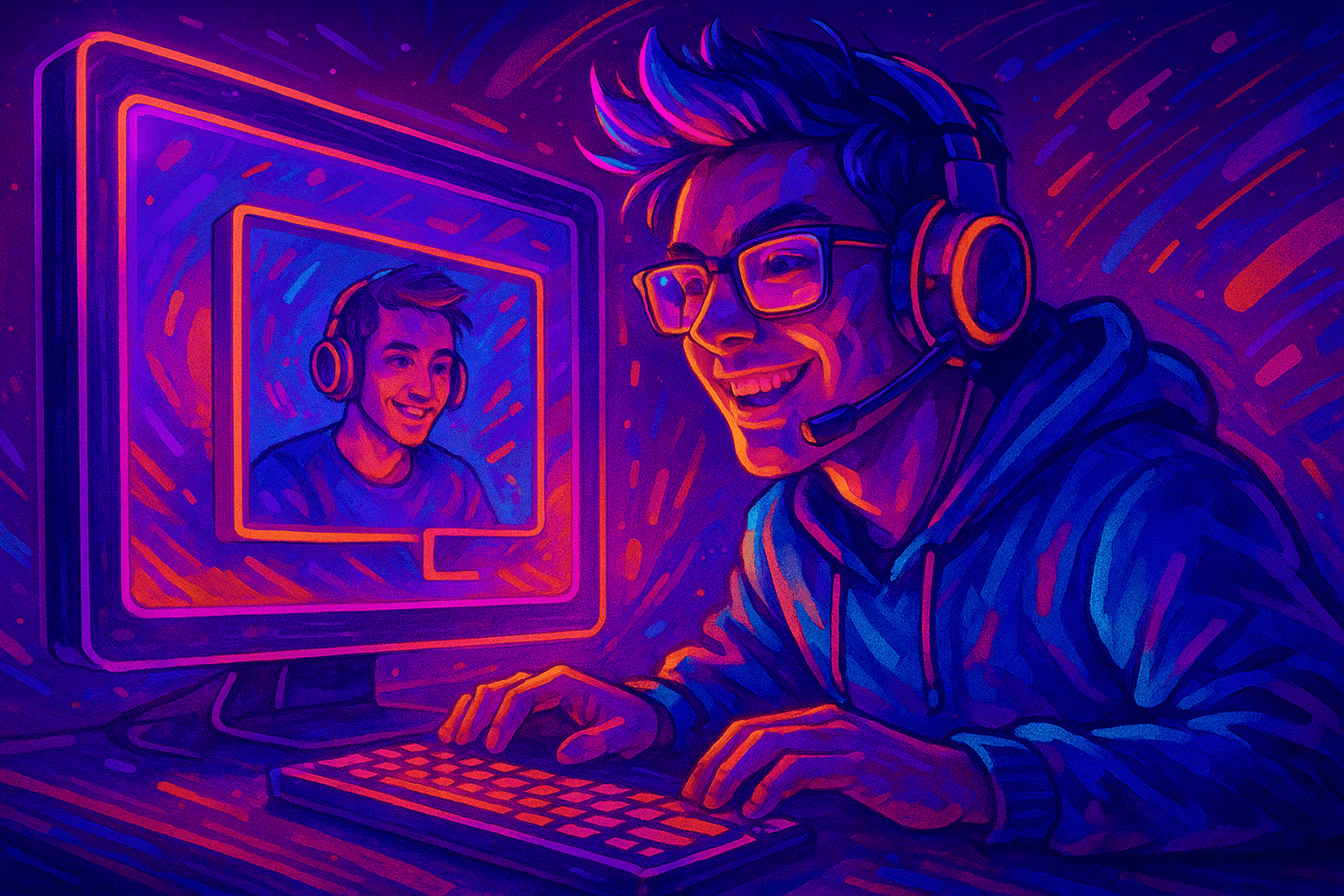
The main benefit of Picture-in-Picture mode is maintaining online presence during ad breaks and background viewing. Even if an ad break starts, the broadcast in the mini-window can continue displaying, and the viewer sees how the stream works and when the ad showing ends. This makes interaction more comfortable and reduces the likelihood of viewer leaving at a critical moment.
Where PIP Is Available on Twitch
Picture-in-Picture mode is available on most modern browsers: Chrome, Safari, Edge, and Firefox support this feature through standard system PIP. On PC, it automatically appears if the Twitch video player detects correct parameters.
On mobile devices, Picture-in-Picture mode on Twitch works in iOS and Android apps. The feature depends on system capabilities: if PIP support is enabled in the operating system settings, the mini-window becomes available when minimizing the app. A channel may have category or region restrictions that affect ad display and mini-player operation during ad breaks. In some cases, when starting to watch, ads in PIP mode display differently than the main stream, especially if the channel has automatic pre-roll display enabled.
How to Enable Picture-in-Picture on Twitch in Browser
To enable PIP mode on PC, follow these steps:
- Open the broadcast and hover over the video player.
- Click the 'Picture-in-Picture' icon or open the corresponding tab in the context menu.
- The mini-window will automatically appear on screen, and you can drag it to a convenient area.
- Through the mini-window you can control volume, pause, continue watching, or quickly return to full-screen mode.
- When you launch other applications, the window stays on top until manually closed.
These steps are suitable for all users who want to learn how to set up and use Picture-in-Picture in everyday use.
How to Enable Picture-in-Picture on Mobile
The Twitch app has a built-in ability to launch PIP:
On iOS, you need to go to device settings in the PIP section and allow the feature. Then open a stream in the Twitch app and minimize the window — the mini-player will appear automatically.
On Android, you need to open Twitch app settings, find the corresponding section, and enable the 'over other apps' permission. After that, simply minimize the broadcast and the window will appear on screen.
In the mini-player, you can control with gestures: move the window, change size, close it when viewing is finished. Response time is minimal, so Picture-in-Picture mode works stably even on low-end devices.
Ads in Picture-in-Picture Mode
During ad insertions, the feature has several specifics. If an ad break starts, ads in mini-player mode may display differently than the main broadcast. Ad display depends on channel settings and regional restrictions. Sometimes when starting to watch, ads display on the main window while PIP temporarily minimizes.
However, in most cases, ads in PIP mode continue to display correctly: the mini-player stays active, and viewers don't need to switch back. Ad break display in PIP on Twitch is adapted to maintain convenience and not interrupt background viewing.
Common Problems and Solutions
Typical problems are related to the browser, system, or channel restrictions:
- No PIP icon → update your browser, enable experimental media features.
- Mini-window won't launch on mobile → check system permissions and power saving mode.
- Window closes automatically → add Twitch app to the exceptions list.
- Video plays but sound disappears → disable third-party extensions or ad break blocker.
If the problem persists, you can run a quick device check and try a different video player.
Best Usage Scenarios
Picture-in-Picture mode on Twitch is especially useful:
- during work or study;
- when watching guides for a game in a secondary window;
- on a second monitor while playing and watching a stream simultaneously;
- for viewers who don't want to miss the moment a stream starts.
PIP works best when the chat is still visible — streamers who want viewers to keep typing during background viewing usually pair the mode with a chat panel that runs alongside PIP viewing so the mini-window stays linked to live interaction rather than becoming passive background video.
Streamers are recommended to mention PIP capability in their channel description and mention it verbally. This helps retain viewers even when they minimize the application.
FAQ on Twitch Picture-in-Picture Mode
On iOS — yes, on Android it depends on the system version.
Quality is selected automatically and depends on the source stream.
Yes, if the Twitch video player supports the mode.
Quick Checklist for Picture-in-Picture Mode
- Your browser or app is updated.
- PIP is available in system settings.
- You've disabled ad blockers.
- You know where the PIP button is in the player.

